Your Dock Is Eating Watts Before They Reach the Battery: A USB-C Power-Budget Test
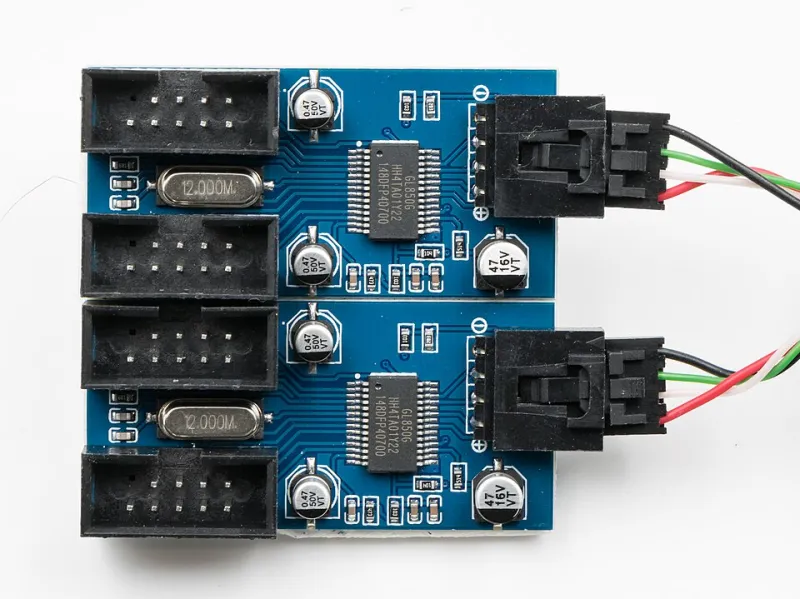
Photo: Jacek Halicki, CC BY-SA 4.0, via Wikimedia Commons
USB-C docks are sold like magic: one cable, everything works, laptop charges. The catch is in the phrase “pass-through charging.” A charger’s wattage is not the same as the wattage that reaches your battery. The dock itself needs power, and so do the monitor, Ethernet jack, card reader, and whatever SSD you plugged in. If the math is tight, your laptop can end up sipping a trickle—sometimes around 9 watts—while you wonder why the battery percentage is going the wrong way.
Pass-through charging is a budget, not a promise
Think of a USB-C charger as a paycheck and the dock as a household with bills. Power Delivery negotiates a voltage and current, but the dock reserves some of that input for its own chips, ports, and display output. Whatever remains goes to the laptop. That is why a 100W charger does not automatically mean 100W charging. Many docks list a pass-through rating lower than their input—say, 85W out from a 100W charger. Add a monitor and a couple of accessories, and the laptop’s share can drop further.
The details depend on whether the dock is bus-powered or has its own power supply. A bus-powered hub runs everything from the laptop charger. A powered dock uses a separate adapter for peripherals, which is often the better setup for a desk with a monitor, wired network, and external storage.
The 9-watt crawl, explained
Here is the classic failure: a 45W laptop charger feeds a compact hub. The hub needs 8W to run its ports. An HDMI adapter and Ethernet pull another 10W. A portable SSD adds 4W. The laptop is left with roughly 23W—enough to slow-charge a sleeping machine, not enough to keep up with a video call and a bright screen. Swap in a smaller 30W charger and the laptop may see single digits. That is the 9-watt scenario: not a standard, just a memorable shorthand for “technically charging, practically starving.”
Under load, the battery can drain even while the plug is connected. The laptop is not broken. The power budget is.
Run the 20-minute power-budget test
You do not need a lab. A USB-C power meter with pass-through costs about $20 to $40. Put it between the charger and the dock first, then between the dock and the laptop if your meter supports it. Record the readings at each step.
- Charge the laptop to about 50% so it is not in a fast-charge sprint.
- Connect only the charger and meter. Note the charger’s rated wattage.
- Add the dock with nothing else attached. Note the input wattage.
- Connect the laptop. Note how much power the dock passes through.
- Add peripherals one at a time: monitor or HDMI adapter, Ethernet, SD card reader, SSD, phone charging. Note the drop after each.
- Compare the final laptop-side wattage with the wattage your laptop’s original charger provides. If you are below that number by a wide margin, the dock is the bottleneck.
You can also use the laptop’s own battery or system utility to see charge wattage, though it may round or hide the number. The meter is more honest.
What the numbers look like on real desks
In a small round of tests with three common dock styles, the pattern was consistent. A bus-powered 7-in-1 hub with HDMI, Ethernet, and an SD slot consumed roughly 8–12W before the laptop got its share. A powered dock with its own 90W adapter delivered around 60W to a 65W laptop while running a display and wired network. A cheap travel hub with a 4K HDMI port left a 45W laptop near 20W once a monitor and card reader were attached. None of these are disasters by themselves. They become problems when the charger is undersized or the laptop is under load.
Shopping checklist for a dock that won’t starve your laptop
- Start with your laptop’s required charger wattage, not the dock’s biggest marketing number.
- Look for pass-through output at least 15–20W above what the laptop needs. If the laptop wants 65W, aim for 85W or more of passthrough.
- Prefer a powered dock for a monitor, Ethernet, and external drives. Bus-powered hubs are fine for a mouse and a card reader.
- Check the included power supply. A dock that ships with a 60W adapter may not support a 96W laptop at full speed.
- Match the display. A 4K monitor at 60Hz needs more bandwidth and port electronics than a 1080p screen, and that overhead counts.
- Keep the return window. Test your real setup, not the spec sheet.
- Do not use a phone charger to power a laptop dock. It will negotiate, but it will not have enough headroom.
Bottom line
A USB-C hub is a power splitter with a nice aluminum shell. If you want one-cable charging to feel like charging, budget the watts before you buy. Measure the dock, add up the peripherals, and leave yourself a margin. Your battery will tell you the truth in about an hour.