Full Bars, Dead Wi-Fi? Five Router Settings to Check Before You Buy New Gear
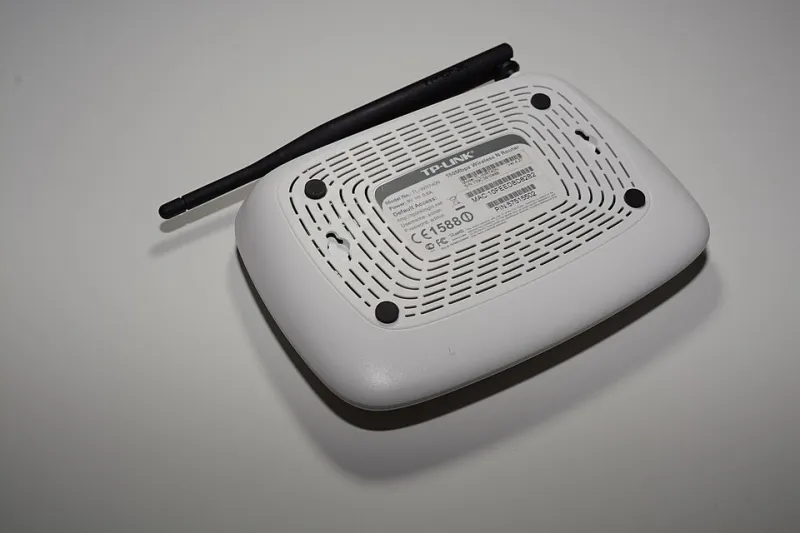
Photo: Hayden Schiff, CC BY 4.0, via Wikimedia Commons
You are three feet from the router, the phone shows every bar lit, and the video call still turns into a slideshow. That mismatch trips up a lot of US households, and it sends them straight to the electronics aisle. Most of the time the problem is not the hardware. It is a handful of settings that shipped in a bad default state.
Here is the ten-minute audit, in the order that produces answers fastest.
First, Get a Baseline You Can Trust
Speed tests run over Wi-Fi measure Wi-Fi, not your internet connection. So start wired. Plug a laptop into the router with an Ethernet cable and run a speed test. That number is your plan's real ceiling.
Now go wireless. Test in three places: same room as the router, one room away, and the spot where things actually break. Write down download speed, upload speed, ping, and jitter for each. Then run a bufferbloat test — the free one at waveform.com is the standard — because latency under load explains a huge share of "the internet is slow" complaints that a speed test misses entirely.
That sheet of paper is your before picture. Every change below gets compared against it.
1. Band Steering Is Probably Misfiring
Modern routers broadcast on 2.4 GHz, 5 GHz, and often 6 GHz. The 2.4 band travels far but is slow and crowded — every doorbell, garage opener, and baby monitor on your block is screaming into it. The 5 GHz band is fast but hates walls. The 6 GHz band on Wi-Fi 6E and Wi-Fi 7 gear is fastest and shortest.
Band steering is supposed to move each device to the right band automatically. When it works, it is invisible. When it does not, your laptop sits on 2.4 GHz all day, showing full bars and delivering a fraction of the throughput.
Look for a toggle called Smart Connect, Band Steering, or One Wi-Fi Name. Try turning it off and splitting the bands into two named networks — something like Home-5G and Home-24. Connect your laptop, TV, and consoles to 5 GHz manually. Keep a 2.4-only network around for smart plugs, robot vacuums, and older thermostats that cannot see 5 GHz at all.
2. Channel Width: Wider Is Not Automatically Better
Channel width is how much spectrum your router claims at once. On 2.4 GHz, set it to 20 MHz and leave it. The 40 MHz option on that band overlaps half your neighborhood and usually makes things worse.
On 5 GHz, 80 MHz is the sweet spot for most homes. The 160 MHz option looks great on paper and can double throughput in a lab, but in an apartment building or a dense suburb it competes for airtime and often delivers less. If you live somewhere with a dozen visible networks, drop to 80 and re-test. On 6 GHz, 160 MHz is usually safe; 320 MHz is a nice-to-have only if your home is not already crowded with Wi-Fi 7 gear.
While you are in there, set the channel to Auto unless you have a specific reason not to. Most current routers handle channel selection better than a manual pick you made once in 2023.
3. DNS: The Setting Nobody Changes
Domain Name System lookups happen before every page load. Your ISP's default resolvers are often the slowest link in a fast connection, which is why pages feel sticky on the first click and fine afterward.
Set DNS at the router so every device inherits it. Cloudflare (1.1.1.1), Google (8.8.8.8), and Quad9 (9.9.9.9) are the common picks, and most routers now support encrypted DNS over HTTPS. Try one, then the next, and re-run your baseline. The difference shows up as snappier first loads rather than a higher speed test number — do not expect the meter to move.
4. QoS and SQM: Fix the Call That Dies When Someone Streams
If your video call collapses the moment a kid starts a 4K stream, you have bufferbloat, and router QoS is the fix. Look for Smart Queue, SQM, or Adaptive QoS. If your router supports cake or fq_codel, use it. Set the bandwidth limits to about 90 percent of your measured wired speeds — leaving a little headroom is what makes the queue management work.
Skip the gamer-centric device prioritization presets. They rarely help, and they sometimes just starve everything else.
5. Firmware, Then the Reset You Keep Postponing
Turn on automatic firmware updates if the router offers it, and check manually once now. Vendors ship security patches and, occasionally, real performance fixes for specific chipsets. A router still running its original 2022 firmware is a genuine liability.
If you have made it this far and things are still bad, do a factory reset and rebuild your network from scratch with the settings above. It takes fifteen minutes and clears out years of half-remembered tweaks.
When Buying New Gear Is Actually the Answer
Three honest triggers. You are paying the ISP a monthly equipment rental fee — often $15 or more, which is $180 a year against a $150 router that pays for itself in ten months. Your router is Wi-Fi 5 era hardware and you have a gigabit plan it cannot feed. Or you live in a home over about 2,000 square feet with plaster walls and dead corners that no single box can reach, in which case a mesh system solves a geometry problem that no setting can.
Otherwise, the settings above cost nothing and take one evening. Run the audit, keep the sheet of before-and-after numbers, and let the data decide whether your credit card needs to come out.