Chrome Crawling? A 9-Minute Tune-Up Using Only the Settings Already on Your PC
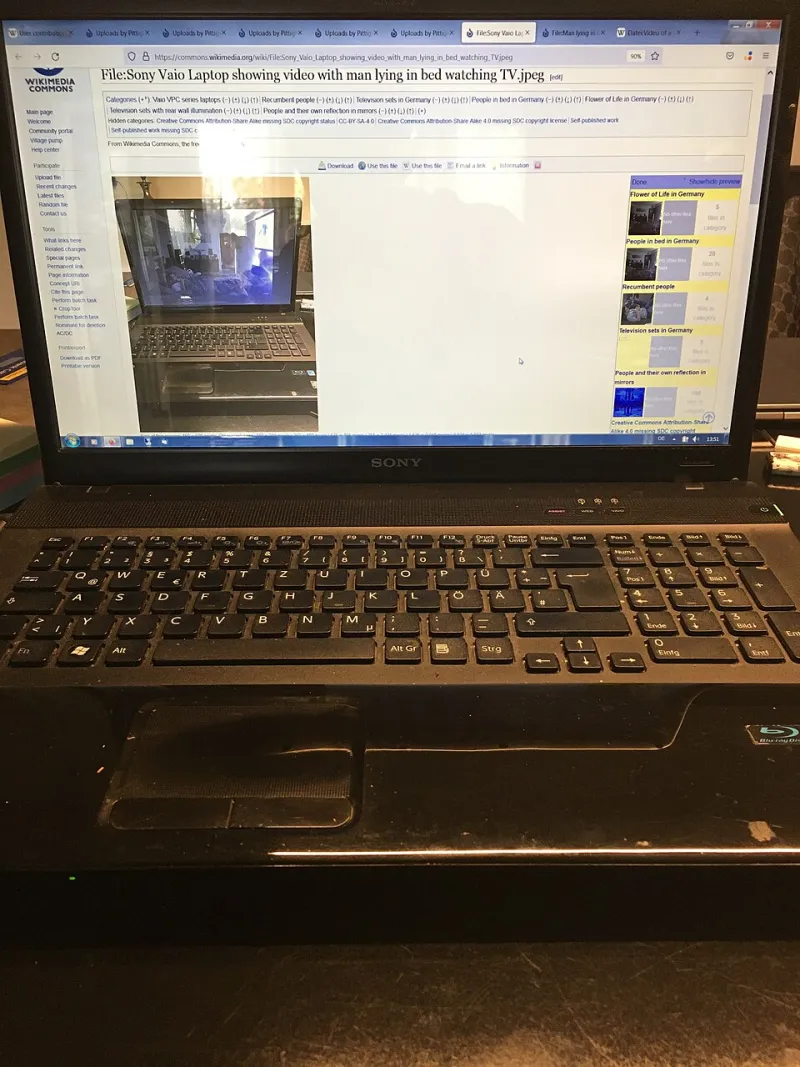
Photo: Pittigrilli, CC BY-SA 4.0, via Wikimedia Commons
Chrome gets slow the way a kitchen gets messy: gradually, then all at once. The usual advice is to install a "cleaner" extension, which is a bit like hiring a stranger to tidy your drawers. You don't need any of that. Chrome and Edge both ship with the tools that matter, tucked behind URLs most people never type. Set aside nine minutes, keep a scratch note open, and work through this in order.
Take a Baseline Before You Touch Anything
You can't tell whether a fix worked if you never measured the problem. Spend the first minute writing down three things:
- Memory usage. In Chrome, press Shift+Esc to open the browser's own task manager. In Edge, it's the same shortcut. Note the total memory figure at the top.
- A load time. Pick one heavy site you visit daily — a news homepage, a dashboard — and time it with your phone's stopwatch, twice, cold.
- Tab count. Be honest. Fifty is a diagnosis.
Leave the tab open in your notes app. Every couple of steps, come back and compare.
Minute 1–3: Find Out Who's Actually Running
Type chrome://settings/performance in the address bar (Edge users: edge://settings/system). This is the control room most people skip.
Turn on Memory Saver in Chrome or Sleeping tabs in Edge. This lets the browser park tabs you haven't touched in a while and free their memory without closing them. Leave your email, calendar, and anything you keep half-watched on the excluded list so they don't reload mid-task.
While you're here, check Startup boost in Edge. It preloads a background process when you sign in, which helps on a fast machine and hurts on a cramped one. If you're running 8GB of RAM, switch it off and see whether boot feels lighter.
Minute 3–4: Cut the Background Crew
Open chrome://settings/onStartup. If it's set to "Continue where you left off" and you routinely close the lid with thirty tabs open, that's your bottleneck dressed up as convenience. Switch to "Open the New Tab page" for a week and watch what happens to your first-five-minutes performance.
Then scroll to System and look for the toggle that keeps apps running in the background after you close the window. Chrome labels it "Continue running background apps when Google Chrome is closed"; Edge calls it something similar. Unless you rely on a chat app or music player living in the background, turn it off. Same story in Edge's system page — background extensions quietly chew memory even when no window is open.
Minute 4–6: Test Hardware Acceleration Instead of Guessing
This is the setting with the most folklore attached. Open chrome://gpu and read the Graphics Feature Status list near the top. You want to see "Hardware accelerated" next to Canvas, WebGL, and Video Decode. If those say "Software only" or "Disabled," your machine is rendering pages on the CPU, and scrolling will feel like mud.
Now go to chrome://settings/system and check the Use graphics acceleration when available toggle. Flip it, hit the Relaunch button, and test the same heavy page: scroll a long article fast, or play a 4K video and watch whether the fan spins up. On older integrated graphics, turning acceleration off sometimes fixes flickering and studdering; on anything from the last several years, on is almost always better. Trust the test, not the forum thread.
Minute 6–7: Retire a Profile
Click your profile icon in the top right and look at the list. Every profile you've created is a separate process tree with its own cache, cookies, and extensions — three profiles that all sync to the same Google account is pure overhead. Delete the ones you abandoned years ago (the three-dot menu next to each has a delete option), and confirm you're not signed into a work profile twice.
While you're in there, glance at the extensions list on each remaining profile. You can't install your way out of slowness, but disabling three you don't recognize takes ten seconds and costs nothing.
Minute 7–8: Clear the Cache, Keep the Logins
Go to chrome://settings/clearBrowserData and set the range to All time. Uncheck passwords and autofill — you want those. Leave cookies checked only if you're ready to sign back into everything; otherwise pick "Cookies and other site data" off and clear just cached images and files. A bloated cache is rarely the main culprit on a modern machine, but it's a free reset and it flushes corrupted entries that cause weird half-loading pages.
Minute 8–9: Fix the Network Path
If pages feel slow to start rather than slow to render, DNS is your suspect. Open chrome://settings/security and enable Use secure DNS, then choose Cloudflare (1.1.1.1) or Google (8.8.8.8) from the dropdown instead of your ISP's default. Edge has the same option under edge://settings/privacy.
Then visit chrome://net-internals/#dns and click Clear host cache. On Windows, pop open Command Prompt and run ipconfig /flushdns for good measure. This won't make a fiber connection faster, but it clears stale records that send your browser to the wrong server after a site migrates.
The Before-and-After Scorecard
Go back to your notes. Fill in the same three numbers and see what moved:
| Check | Before | After | Likely cause |
|---|---|---|---|
| Browser task manager memory | — | — | Memory Saver / background apps |
| Heavy page load | — | — | Cache or DNS |
| Scroll smoothness | — | — | Hardware acceleration |
If nothing changed, that's useful information too. It means the browser isn't your problem. Common culprits: an ancient spinning hard drive, a Windows power plan stuck on "Power saver," 8GB of RAM split across forty tabs, or a router that needs a reboot more than Chrome does. Run chrome://restart to reload everything cleanly before you blame the app.
What Not to Do
The internet will tell you to install a memory optimizer, a tab suspender, and a cache cleaner. Each one adds a background process to fix a problem caused by background processes. Everything in this walkthrough is already inside the browser you're using — no downloads, no accounts, no toolbar you'll forget to remove. Nine minutes, one restart, and an honest before-and-after. That's the whole tune-up.