Your Router’s USB Port Is a Shortcut, Not a Storage Hub
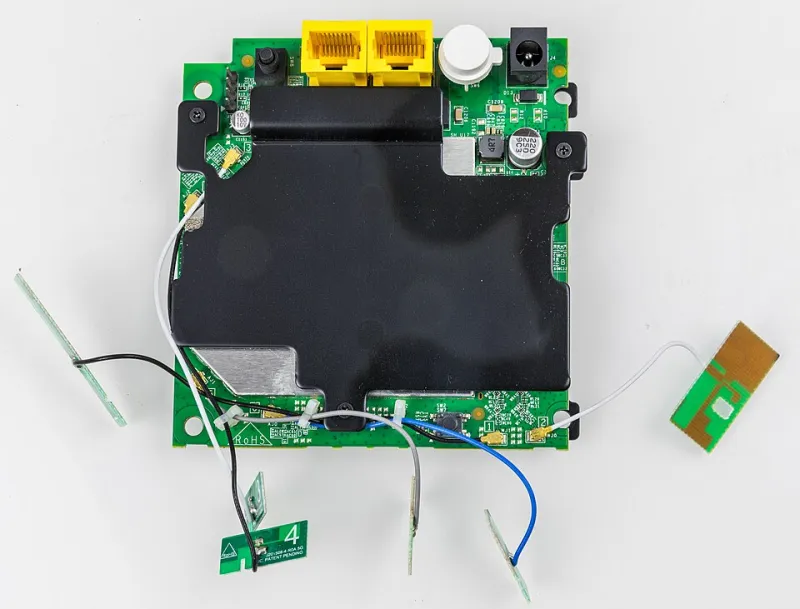
Photo: Raimond Spekking, CC BY-SA 4.0, via Wikimedia Commons
The appeal is obvious. The performance often is not.
Router makers love a USB port. It gives the box on your shelf a second act: plug in a flash drive or an external hard drive, flip on file sharing in the admin panel, and suddenly every laptop and phone on the network can see the same files. No subscription, no extra hardware, no cloud account. For a household that just wants to move a PDF from a desktop to a tablet, that sounds close to perfect.
The catch is that a router is not a file server. It is a networking device with a small processor, limited memory, and firmware built around routing traffic, not managing storage. The USB port is usually a shortcut for light-duty sharing, not a miniature NAS. The label on the box may say USB 3.0, but that does not mean you will get USB 3.0 speeds through the router’s file-sharing software. Before you trust it with a photo library or a backup job, spend ten minutes measuring what it actually does.
What the port is genuinely good at
Think of the router USB jack as a convenience port. It is fine for a printer that needs to be shared, a quick file drop between two devices, or a drive that holds a few movies for a TV or streaming box that supports DLNA. It can also work as a casual backup target for one computer if you are not in a hurry and you keep a second copy somewhere else.
It is not a great fit for multiple people pulling large files at once, for editing documents directly off the drive, or for any job where speed and reliability matter. Those tasks belong on a direct connection or a dedicated NAS.
The ten-minute speed reality check
You do not need special tools. Grab a USB drive, a laptop, and the router’s admin page. A 1 GB test file is enough to get a useful number without turning this into a weekend project. If the drive already has files on it, use a test folder so you do not risk anything important.
1. Set up the share
Plug the drive into the router’s USB port. Open the router admin panel in a browser, usually at something like 192.168.1.1 or the address printed on the router. Find the USB or storage section and enable file sharing. Depending on the router, you may see SMB, FTP, or both. Create a share and note the username and password if the router asks for one. If the drive is formatted in a file system the router does not recognize, this is where you will find out.
2. Make a 1 GB test file
On Windows, open Command Prompt and run:
fsutil file createnew test.bin 1073741824
On a Mac, open Terminal and run:
mkfile 1g test.bin
That gives you a file large enough to smooth out some of the start-and-stop behavior of small files, but small enough to copy in a minute or two on most connections.
3. Copy it over Wi-Fi, then back
Connect your laptop to the router’s main Wi-Fi band, preferably 5 GHz or 6 GHz if available. Map the router share or connect with an FTP client, then copy the test file to the drive. Time the transfer with your phone’s stopwatch. Then copy the same file back from the router to the laptop and time that too. Write both numbers down. If you want a cleaner comparison, repeat the test with the laptop plugged into the router with an Ethernet cable.
4. Do the math
A 1 GB file is roughly 1,000 MB. If it takes 60 seconds, you are getting about 17 MB/s. If it takes two minutes, you are closer to 8 MB/s. If it takes 20 seconds, that is about 50 MB/s. Do not confuse megabytes with megabits; the number in the file copy dialog is usually MB/s, while internet speeds are often sold in Mbps. One MB/s is roughly eight Mbps.
For a router USB port, anything under 10 MB/s is common and usually points to a USB 2.0 bus, a slow processor, or both. Something in the 30 to 80 MB/s range is respectable for a midrange router with USB 3.0. If you see 2 to 5 MB/s, the port is fine for a small document now and then, but it is not shared storage in any practical sense.
Why the speed drops
The router has to run the file-sharing service, handle the network traffic, and manage the drive all at once. Many routers have modest CPUs and little RAM, so a large file copy can max out the device. The USB bus may be slower than the label suggests, especially on older or budget models. Wi-Fi adds its own overhead, and small files are worse than one big file because every file has to be opened, listed, and closed.
The drive matters too. A spinning external hard drive may spin down when idle, so the first transfer feels sluggish. A cheap flash drive can slow down sharply after a few seconds of writing. If the router only supports an older sharing protocol, your computer may fall back to a slower method without telling you.
When the port earns its keep
Keep using it if your needs are light and local. A single person moving a few files between a laptop and a tablet is a reasonable use. Sharing a printer is a classic router USB job. Dropping a video onto a drive so a TV can play it is another. A small household that understands the drive is a convenience, not a backup system, can get by just fine.
Just do not treat it as the only place your important files live. A router USB drive is still a single drive with no redundancy, and routers fail. Keep a second copy on a computer, an external drive, or a reputable cloud service.
When to skip it
If more than one person needs to work from the drive, or if you are moving files larger than a few gigabytes regularly, plug the drive directly into a computer or step up to a NAS. A direct connection gives you the full speed of the drive and removes the router from the path. If you need shared access from several devices, an always-on computer with a shared folder can work, but a NAS is simpler for backups, media streaming, and multiple users.
A NAS is not cheap, but it is built for the job. It can run proper RAID, schedule backups, and serve files without making your internet router sweat. If the ten-minute test shows your router topping out at 8 MB/s, that is your answer. Use the USB port for what it is, and move the serious storage somewhere else.
The bottom line
A router USB port is a useful shortcut, not a storage hub. Test it with one big file before you commit. If the speed fits your actual workflow and you keep a separate backup, it can be a handy little feature. If you need real shared storage, skip the workaround and connect the drive directly or buy a NAS. Ten minutes of testing beats months of waiting on a copy that never quite finishes.